Groovy Seventies Stacked Canva Frame
If you are looking to inject a burst of retro energy into your digital projects, the Groovy Seventies Stacked Canva Frame offers a compelling solution. This template allows creators to tap into the vibrant aesthetic of the 1970s without needing advanced graphic design skills. By utilizing an intuitive drag-and-drop interface, you can customize captivating compositions effortlessly. However, before you dive in, it is crucial to understand exactly what this product is, how it functions, and where users often stumble when trying to achieve professional results.
Understanding the Template Structure
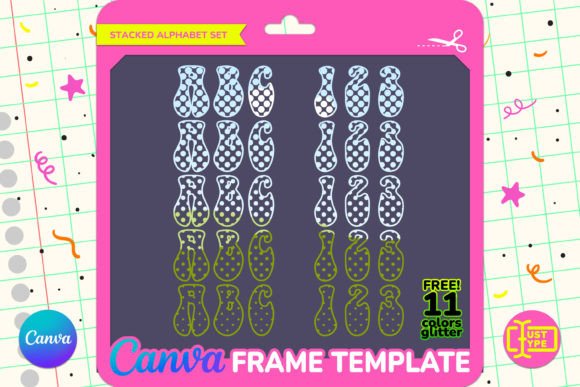
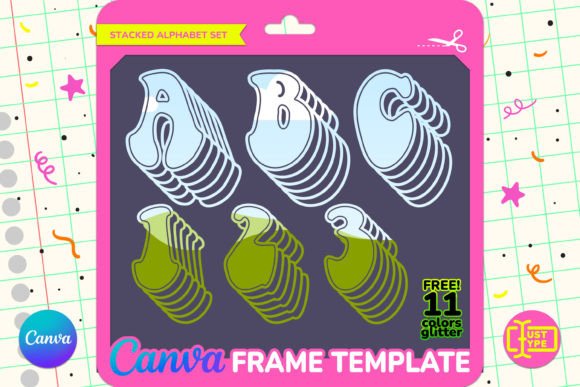
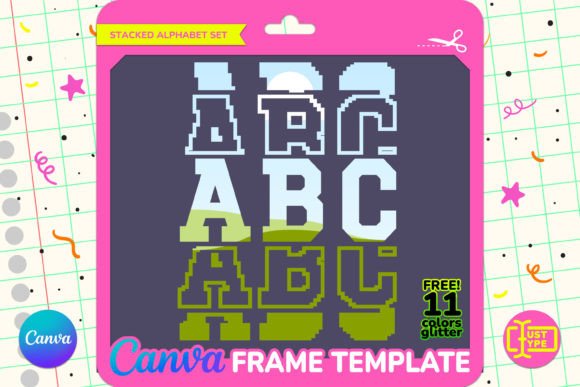
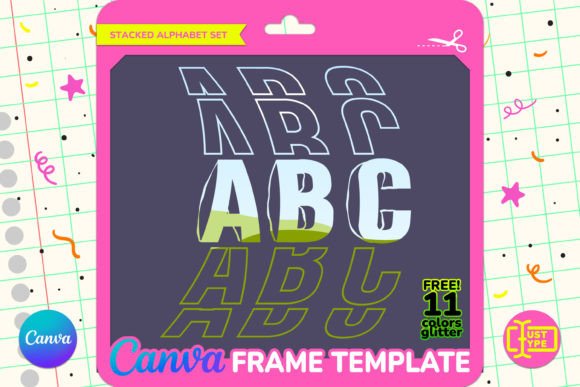
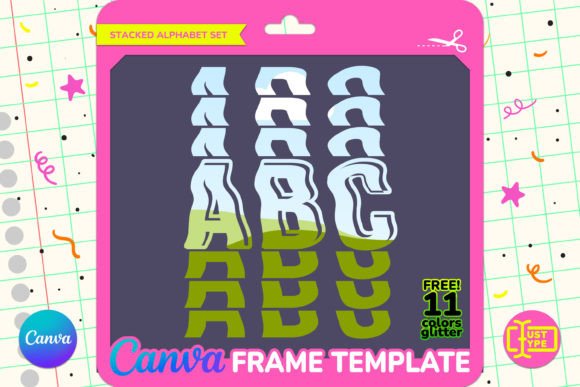
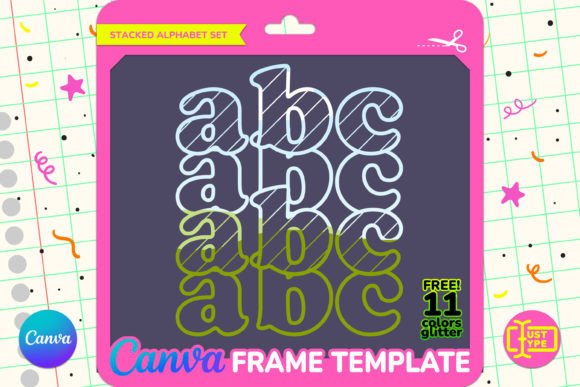
The core appeal of this resource lies in its vector-based architecture. Unlike static images that pixelate when enlarged, these letters are designed to be resized without quality loss. Each letter stands approximately six inches tall, providing a substantial focal point for posters, social media graphics, or event flyers. The structure relies on frames within Canva, meaning you do not edit the text itself but rather fill the shapes with your chosen content.
This distinction is vital for beginners. Many assume they can type directly into the letters as they would with standard text boxes. Instead, you are working with a mask or container. You drag patterns, photos, or colors into these defined areas. This method ensures consistency across all letters, maintaining the stacked, groovy style regardless of the content you insert. It is a powerful way to create bold typography-driven designs quickly.
Common Misconceptions About Editing Capabilities
A frequent misunderstanding among new users involves the nature of the file format. You might receive a PDF containing a link, which can be confusing if you expect a downloadable .AI or .PSD file. The PDF simply serves as a gateway to access the Canva template. Once you click the link, you enter the Canva editor. This requires a Canva account. While the basic version allows for extensive editing, there are specific limitations regarding exports that you must be aware of to avoid frustration later.
Another common error is assuming that any image will look good inside the frame. Because the letters have a specific shape and curvature, placing a complex photograph in every single letter can result in visual clutter. To maintain readability and impact, consider using high-contrast elements or cohesive color palettes. For instance, using a solid vintage hue for some letters and a contrasting pattern for others creates depth. Avoid filling every slot with a busy photo unless your goal is an abstract, collage-like effect.
Leveraging the Bonus Pack Effectively
To enhance your designs, the package includes a bonus pack featuring 11 dazzling glitter textures. These are provided as high-quality JPG files. When integrating these textures, remember that they are meant to harmonize seamlessly with the Disco Stacked Text theme. A mistake many make is applying glitter textures indiscriminately. Overusing glitter can overwhelm the design and reduce its professionalism.
Instead, use the textures strategically. Apply them to background layers or specific accent letters to draw the eye. Ensure that the texture resolution is sufficient for your intended output size. Since these are JPGs, check their dimensions before dragging them into your project. If you need to scale them up significantly, low-resolution images may appear blurry, detracting from the overall quality of your composition.
Technical Requirements and Account Needs
Before purchasing or downloading, verify your Canva subscription level. The template is versatile, but certain features, such as transparent background downloads, require Canva Pro. If you are using the free version, you will only be able to export your designs with a white or colored background. This is not necessarily a dealbreaker, but it affects your workflow if you plan to overlay your design onto other images or videos. Plan your design process accordingly to ensure the final output meets your needs.
Additionally, ensure you possess the necessary editing skills to navigate the Canva interface. While the tool is user-friendly, understanding how to layer elements, adjust opacity, and align objects is essential for a polished result. The letters are well-organized in the project, making it easy to pick individual components, but knowing how to manipulate these layers will elevate your final product.
Optimizing Your Design Workflow
To get the most out of the Groovy Seventies Stacked Canva Frame, start by defining the purpose of your design. Are you creating a concert poster, a birthday invitation, or a blog header? This decision will guide your choice of images and colors. For a concert poster, high-energy photos and bold gradients work best. For a more subtle corporate event, muted tones and minimalist patterns might be preferable.
Take advantage of the vector-based nature of the file. Experiment with different sizes to see how the text interacts with surrounding elements. You can stretch or shrink the entire group while maintaining the aspect ratio. This flexibility allows you to adapt the design for various platforms, from Instagram stories to large-format prints. Always preview your design at actual size if possible to ensure legibility.
- Check Image Quality: Before uploading, ensure your source images are high-resolution to prevent pixelation within the frames.
- Maintain Contrast: Use light backgrounds with dark text or vice versa to ensure readability, especially if using textured fills.
- Organize Layers: Keep your layers tidy in the Canva sidebar. Name your groups (e.g., "Background," "Text Frames") to make future edits easier.
- Test Exports: Download a test version of your design to check for any unexpected artifacts or alignment issues before finalizing.
Evaluating Value and Suitability
When evaluating whether this template fits your needs, consider the time savings it offers. Creating custom stacked typography from scratch can take hours. With this frame, you can achieve a similar look in minutes. This efficiency is particularly valuable for marketers, bloggers, and small business owners who need consistent branding across multiple channels.
However, be mindful of customization limits. You cannot change the font itself, as the letters are pre-shaped. If you require a different typeface, this template may not be suitable. Instead, view it as a stylistic choice that embraces the specific groovy aesthetic. The included glitter textures add versatility, allowing you to tweak the mood without altering the core structure.
Finally, review the included documentation carefully. The ZIP file contains the 11 JPGs, and the PDF holds the access link. Ensure you save these files in an accessible location. Losing the link means losing access to the editable template, forcing you to recreate your work or purchase again. Treat the PDF as your key to the asset library.
Final Thoughts on Creative Freedom
The Groovy Seventies Stacked Canva Frame is more than just a decorative element; it is a tool for efficient, high-impact design. By avoiding common pitfalls like poor image selection, ignoring account limitations, and misusing textures, you can create stunning projects that stand out. Embrace the drag-and-drop simplicity, respect the structural constraints, and let your creativity flow within the groovy framework. With the right approach, this template becomes an invaluable part of your design toolkit, helping you bring your vision to life with clarity and style.